

Five steps. No order. That’s what nearly every guide hands you, and it’s why the same broken laptop takes one tech two minutes and another one forty.
We teach this order in the first week of our free CompTIA Network+ course, because troubleshooting carries more weight on the N10-009 exam than any other domain.
So here’s the short version of computer networking troubleshooting, before anything else:
ipconfig /alltells you whether the host has a working identity.pingyour gateway, thenping 8.8.8.8tells you whether the fault is local or down the path.nslookuptells you whether the network is fine and only the name is broken.
Run them in that order. Each answer decides whether the next command is worth typing. Everything else, traceroute included, is for narrowing a fault you’ve already located.
That last sentence is the part the checklists leave out.
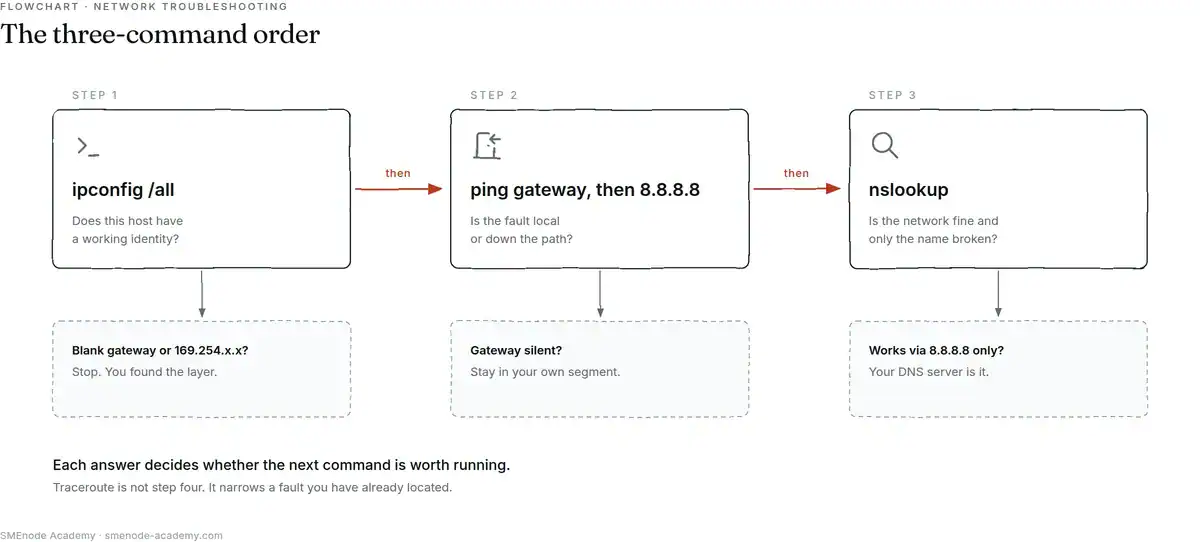
Each command has a stop condition. Hit one and you are done, no matter how many steps are left on the list.
The three commands that localise almost any fault
Three commands. Three questions. Each one cuts the search space roughly in half, which is why the order beats a longer list.
1. ipconfig /all – does this host have a working identity?
The question: can this machine legally speak on this network at all?
Windows:      ipconfig /all
Linux:        ip addr show ; ip route
macOS:        ifconfig ; netstat -rn
You’re reading four things, and only four:
| What you check | Healthy | Broken |
|---|---|---|
| IPv4 address | Anything in your planned range | 169.254.x.x, or blank |
| Subnet mask | Matches your design | Mismatched, so half the network looks remote |
| Default gateway | A real router address | Blank, or 0.0.0.0 |
| DNS servers | At least one, reachable | Blank, or pointing at a dead box |
That gateway row is the one people skip. A blank or 0.0.0.0 gateway is the single most common cause of “the shared drive works but the internet doesn’t”, and not one page currently ranking for this term mentions it.
A mismatched mask is sneakier. The host works fine talking to some machines and silently fails on others, which looks like a random application bug until you read the mask. If that distinction feels fuzzy, our guide on the difference between a VLAN and a subnet covers the concept behind it, and you can’t spot a wrong mask at speed without fluent binary maths. Our subnetting practice questions exist for exactly that reason.
What it tells you to do next: if the address is APIPA or the gateway is missing, stop. Don’t ping anything. You’ve already found the layer.
2. ping the gateway, then ping 8.8.8.8 – local or path?
The question: is this my problem or somebody else’s?
Windows:      ping 192.168.1.1        then    ping 8.8.8.8 -t
Linux/macOS:  ping -c 5 192.168.1.1   then    ping -c 5 8.8.8.8
Two targets, and the split between them is the whole point:
- Gateway replies,
8.8.8.8fails. The fault is past your edge. Your host, your switch and your router are all fine. - Gateway fails. The fault is inside your own segment. You should never have looked further out.
- Both reply. Layers 1 through 3 are proven end to end. Whatever’s broken sits above them.
Use -t on Windows or -c 5 on Linux so you’re not making a judgement call off four packets. Intermittent faults hide inside a default ping.
What it tells you to do next: gateway failure sends you back to Layer 1 and 2. External failure sends you to the path. Both replying sends you to command three.
3. nslookup – is the network fine and only the name broken?
The question: does the plumbing work and only the phone book is wrong?
nslookup google.com
nslookup google.com 8.8.8.8
Run both. The second one is the test that matters, and almost nobody teaches it.
If nslookup google.com 8.8.8.8 returns an answer but nslookup google.com doesn’t, DNS as a concept is fine. Your configured DNS server is the fault. That’s a five-second fix on the client, or a real outage on your internal resolver, and you’ve just told those two apart with one extra word on the command line.
A note if you arrived from a video. You’ll see ping, traceroute and telnet taught as the three “bread and butter” commands. Telnet is genuinely useful, but it tests a single port, which is a Layer 4 question. That question only makes sense after Layer 3 is proven. So telnet isn’t command three, it’s what you reach for after all three pass. More on that further down.
Studying for Network+ right now? The troubleshooting domain is 24% of N10-009, more than any other section. That’s the biggest slice of the exam, and it’s the one you can’t memorise your way through. There’s a section on the exam maths further down.
Why the order matters more than the commands
A troubleshooting checklist runs all five steps no matter what the earlier ones returned. A sequence uses each answer to throw work away.
Look at what that costs you in practice. A no-DHCP fault resolves in one command under the ordered version. The checklist version checks cables, runs ipconfig, pings, checks DNS and traces a route, then arrives at the same answer five commands later.
A DNS fault resolves in three. The checklist still runs five, and one of those five is a traceroute that couldn’t have told it anything.
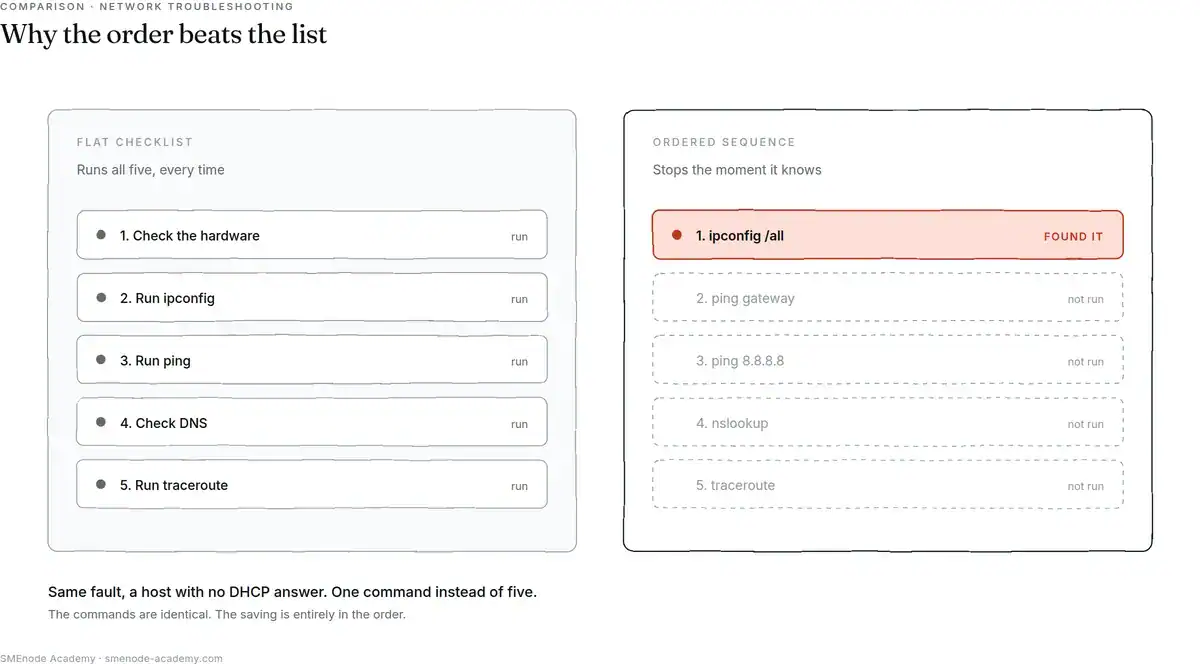
Same fault, same commands. The only difference is that one version knows when to stop.
Why this order specifically?
ipconfig goes first because it’s free, it’s local, and a failure there makes the next two commands meaningless. You cannot interpret a ping result from a host with no valid address.
ping goes second because one command splits the problem into “my side” or “their side”, and that’s the largest single cut available to you.
nslookup goes third because it’s the only remaining thing that can be broken while everything underneath it works perfectly.
Make sense so far? Good, because the next section is where most guides just stop.
When should you skip a step?
This is the part of network troubleshooting no AI answer will give you, and it’s what turns forty minutes into two.
| Skip | When | Why |
|---|---|---|
| The physical check | The fault hits many users at once | One cable doesn’t fail for forty people in the same minute. Go to the shared device |
ipconfig | A ping to the gateway already succeeds | A gateway reply proves address, mask, ARP and Layers 1 to 2 in one shot |
ping to an IP | The name resolves correctly and TCP connects | The fault is above Layer 3. Go to ports and the application |
| The DNS check | The user typed an IP address, not a hostname | There was no name to resolve |
traceroute | ping to the target IP already succeeds | Traceroute can’t tell you anything ping hasn’t |
traceroute for “it’s slow” | You have no baseline | Hop latency isn’t path latency. See below |
Forty people. Same floor. Same minute. That’s not a cable, and every second spent reseating one is a second the switch uplink goes unexamined. Scope tells you which steps are physically impossible before you run any of them.
Worth knowing what the cable step is actually for, though, since we just told you to skip it: the cable category guide covers what genuinely fails at Layer 1 and what doesn’t.
Here’s the one rule that beats the whole table. Never skip a step because you assume the answer. Skip it because an earlier command already proved the answer.
Assumption is guessing with better posture.
Reading the output: what each result actually tells you
Running the command is the easy half. Reading it is the job, and it’s where most computer networking troubleshooting actually goes wrong.
What 169.254.x.x really means (and why “starts with 169” is wrong)
The link-local range is 169.254.0.0/16, defined in RFC 3927. Not “starts with 169”.
That distinction matters more than it looks. 169.1.1.1 is a routable public address. A tech who learned “starts with 169” will one day stare at a perfectly valid host and start rebuilding its DHCP client.
When you see a genuine APIPA address, here’s what happened: the DHCP client sent a DISCOVER and nothing answered. So the fault sits between the host and the DHCP server, and the candidate list is short.
- Dead link or a switch port that’s down
- Wrong VLAN on the access port
- A DHCP relay that isn’t relaying
- An exhausted DHCP scope
It is never a DNS problem. It is never an ISP problem. Anyone who tells you to call your provider over an APIPA address has stopped reading the output.
“Request timed out” is not the same as “Destination host unreachable”
Two failures, two completely different locations. Most guides treat them as one.
| Output | What it means | Where the fault is | Run next |
|---|---|---|---|
Destination host unreachable | Your host or its router has no route or no ARP entry | Local. Your side | ipconfig, route print |
Request timed out | The packet left and nothing came back | Path, or a filter | traceroute, check firewall |
General failure | The local IP stack has no usable route | Local. Adapter or routing table | ipconfig, reset adapter |
TTL expired in transit | The packet is going in circles | A routing loop | traceroute |
Reply from <other IP>: Destination net unreachable | A router is rejecting it and naming itself | That hop | Look at that hop |
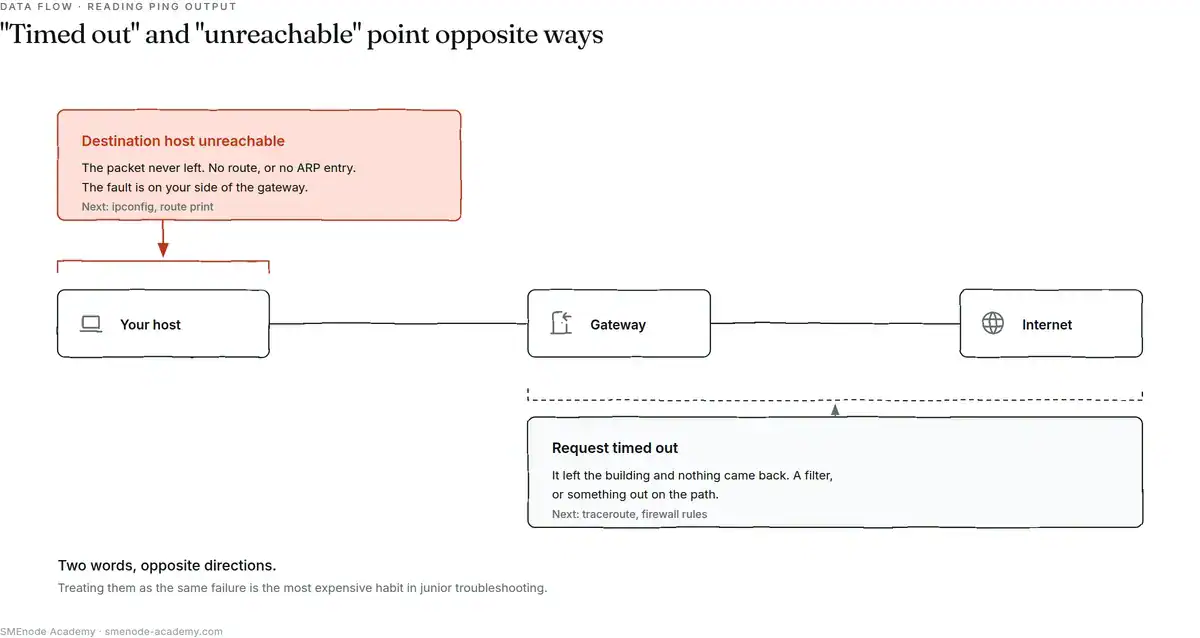
The two messages do not describe different severities. They describe different halves of the network.
Read that table twice. “Timed out” means your packet got out of the building. “Unreachable” means it never left. Those two words point in opposite directions, and treating them as interchangeable is the most expensive habit in junior network troubleshooting.
When traceroute lies to you
Middle hops showing * or 200ms while the final hop answers in 20ms is normal. Not a fault. Not evidence of anything.
Two reasons. Routers deprioritise and rate-limit ICMP that their own control plane has to generate, so a busy core router answers your probe last and slowly while forwarding real traffic at line rate. And ECMP can send each probe down a different physical path, so consecutive hops aren’t even describing the same journey.
Which gives you two rules:
- A traceroute is only trustworthy at its endpoints.
- Hop latency is not cumulative path latency.
If you want to understand why the path varies between probes at all, the end-to-end BGP guide covers how those upstream decisions get made.
Honestly, this one paragraph is more than the entire first page of Google currently offers on traceroute. That’s not a boast about us. It’s a comment on how thin the material is.
Bottom-up, top-down, or divide and conquer?
You’ve got three troubleshooting directions available. Picking the wrong one costs you more than picking the wrong command.
Scope the fault before you touch a command
Three questions. Ask them before you type anything.
- One user or many?
- One destination or all destinations?
- Since when, and what changed?
That’s it. Those three answers narrow the search space harder than any diagnostic tool, and they cost you thirty seconds.
Worth noticing something here. Google’s own AI answer for this topic ends by asking the reader those exact questions: which symptom, wired or wireless, one device or several. Even the machine knows scoping is the missing piece. It just can’t do it for you, because it doesn’t know your network.
We can. That’s the difference between a page and a person.
Picking a direction from the scope
| Scope | Direction | Start at |
|---|---|---|
| Many users, physical symptom, recent cabling or switch change | Bottom-up | Layer 1 |
| One user, one application, everything else fine | Top-down | The application, then ports |
| Scope unclear | Divide and conquer | Layer 3. Ping the gateway. One command halves it |
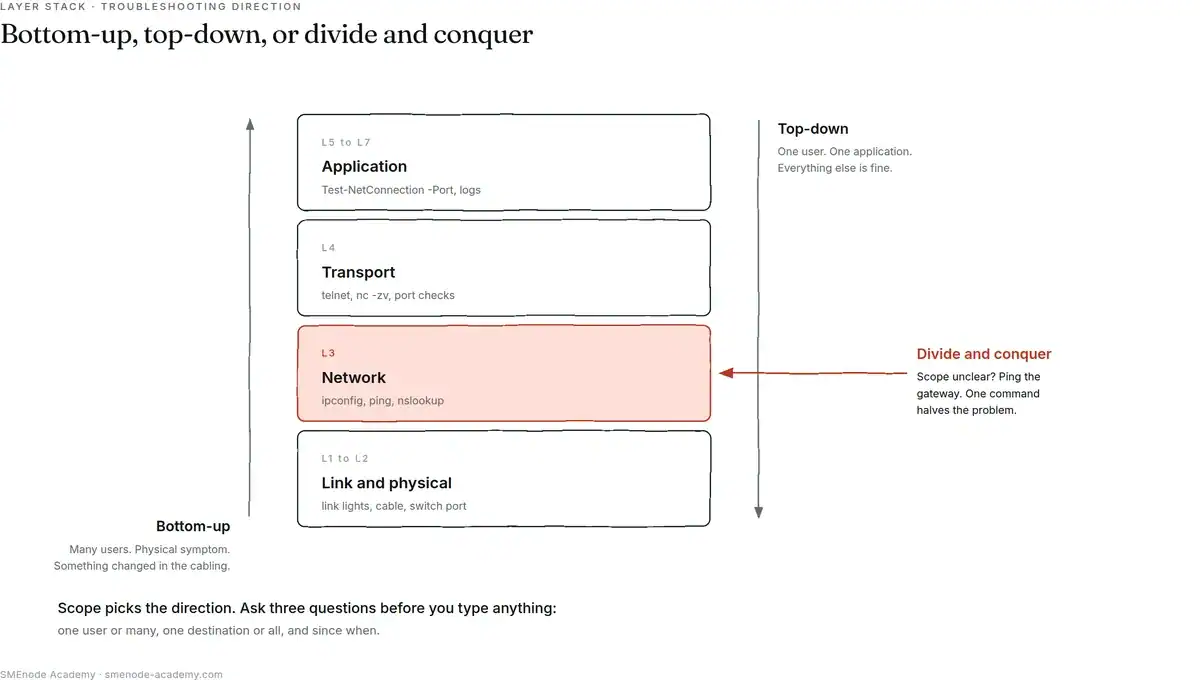
Divide and conquer enters at Layer 3 because one ping to the gateway splits the problem in half.
Divide and conquer is the default when you genuinely don’t know. Think of it like finding a break in a long garden hose: you don’t start at one end, you squeeze the middle.
Keeping the layers straight while you do this is the actual skill. Grab the free OSI model cheat sheet from SMEnode Labs and keep it open.
On the official methodology. CompTIA’s framework is the standard of record and worth knowing verbatim for the exam:
1. Identify the problem 2. Establish a theory of probable cause 3. Test the theory to determine the cause 4. Establish a plan of action to resolve the problem and identify potential effects 5. Implement the solution or escalate as necessary 6. Verify full system functionality and, if applicable, apply preventive measures 7. Document findings, actions, outcomes and lessons learned
Source: CompTIA
Solid framework. But read it again and notice what it doesn’t contain: a single command, or any statement about which order to run them in. It names the phases of thinking. The order in this article is what those phases look like at a keyboard.
You need both. The exam tests the framework. The job tests the order.
Five network troubleshooting faults you’ll meet first
Not a ranked list, and we’re not going to invent percentages for how common each one is. These are just the shapes that turn up early in a career.
| Symptom | First command | Usual cause | Fix |
|---|---|---|---|
| No connectivity, one host | ipconfig /all | APIPA, DHCP never answered | Link, switch port, VLAN, DHCP scope |
| Local fine, internet dead | ipconfig /all then ping 8.8.8.8 | Missing or wrong default gateway | Gateway config, or DHCP option 3 |
| Some sites load, others don’t | nslookup <site> 8.8.8.8 | Configured DNS server failing | DNS setting, flush the cache |
| Everything reachable, one app broken | Test-NetConnection -Port | Blocked port, or a dead service | Firewall rule, or restart the service |
| Intermittent drops, wired | ping -t <gateway> | Duplex mismatch, failing cable, spanning-tree reconvergence | Port stats, cable, STP topology |
That last row deserves a warning. Intermittent wired drops are the fault most likely to get misdiagnosed as “the wifi is bad” when there’s no wifi involved. When a switch topology changes, spanning tree recalculates, and during that window traffic stops. To the user it reads as random. To you it should read as a pattern, and our PVST guide explains what’s happening in that window.
Basically, “random” almost never is. It’s a pattern you haven’t sampled long enough to see. That’s what ping -t is for.
Where three commands stop being enough
Time to be straight about the limits, because a claim without limits is marketing.
Three commands localise a fault. They don’t diagnose everything, and there are four troubleshooting situations where they run out fast.
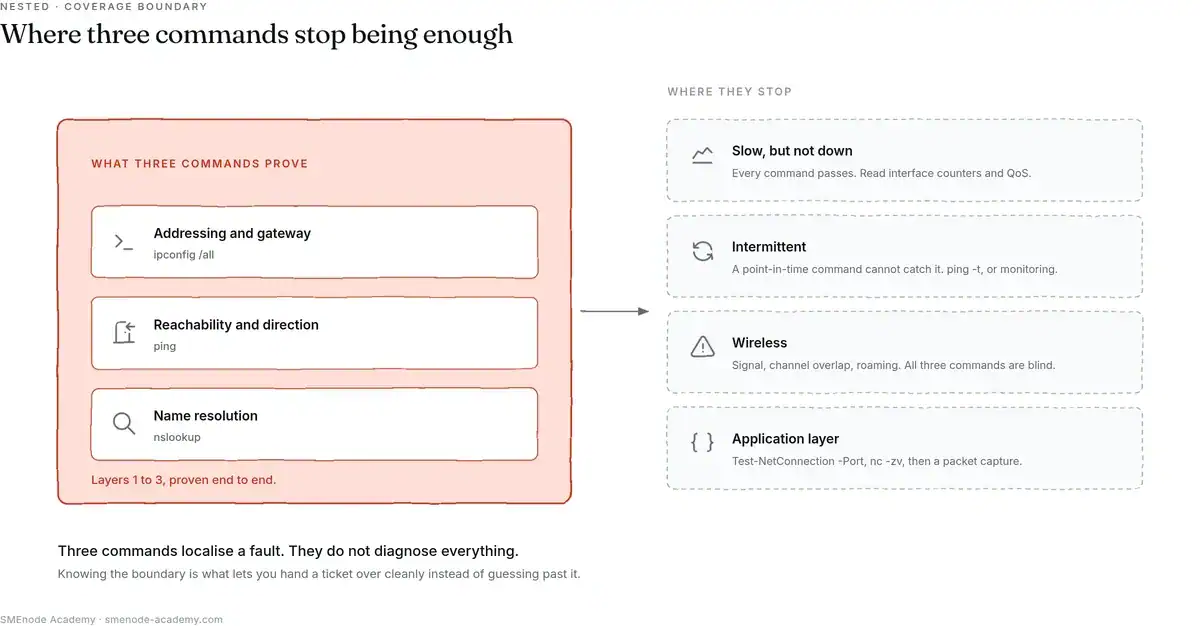
Inside the boundary the three commands are enough. Outside it, saying so is the useful answer.
Slow, but not down. Every command passes. Everything works. It’s just bad. Ping and nslookup have nothing to say here because nothing is failing. You need interface counters, error and discard rates, and an understanding of how traffic gets prioritised. Our breakdown of QoS and expedited forwarding is the right next stop for a “slow” ticket.
Intermittent. A point-in-time command can’t catch a fault that isn’t happening right now. You need history, which means monitoring, or a very patient ping -t.
Wireless. Signal strength, channel overlap, roaming behaviour and client drivers are all invisible to these three commands. A wifi client with a perfect ipconfig can still be unusable.
Application layer. Once Layers 1 to 3 are proven, use Test-NetConnection -Port 443 <host> on Windows or nc -zv <host> 443 on Linux to test the port. If the port opens and the app still fails, the network has been cleared and it’s a server or application problem. Say so, clearly, and hand it over.
Past those three, the standard toolkit widens out to netstat, arp, route and tcpdump, and Cisco’s own troubleshooting reference lists the full set. When you need to see what actually left the wire, that’s Wireshark. Reading a capture properly is a different skill from running these commands, and it’s the point where most people move from Network+ into CCNA training.
How this maps to the Network+ troubleshooting domain
Here’s the exam maths, straight from CompTIA’s Network+ objectives:
| N10-009 domain | Weight |
|---|---|
| Network troubleshooting | 24% |
| Networking concepts | 23% |
| Network implementation | 20% |
| Network operations | 19% |
| Network security | 14% |
Troubleshooting is the biggest domain on the exam. Bigger than concepts. Bigger than security. Nearly a quarter of a 90-question paper, and it’s the one section you can’t pass by memorising a table.
Which is the honest argument for live training over recorded video. A recording can show you ipconfig. It can’t watch you pick the wrong command and ask you why you picked it. In our live sessions that question comes up constantly, and it’s where the actual learning happens.
Our live Network+ training is free, runs twice a week with a real instructor, and includes an EVE-NG lab. If you’re weighing which certification to start with, Network+ or CCNA first answers that one properly.
Practise on a lab you’re allowed to break
You can’t learn troubleshooting order on a working network. A network that works never asks you a question.
So build three faults on purpose:
- Kill DHCP. Watch APIPA appear. Confirm the range really is
169.254.0.0/16. - Delete the default route. Watch local traffic survive while the internet dies. That’s the
0.0.0.0gateway fault, made on demand. - Point DNS at a dead server. Watch names fail while
ping 8.8.8.8keeps answering. Then fix it withnslookup google.com 8.8.8.8.
Break each one, then find it using only the three commands. Time yourself. The Proxmox homelab networking guide walks through building the VLANs and bridges you need, and the CCNA workbook from SMEnode Labs has EVE-NG labs if you’d rather not touch hardware.
Do this three times and the order stops being something you remember. It becomes something you have.
Bottom line
Five steps in a list is information. Three commands in an order is a method, and it’s the whole of computer networking troubleshooting at the level that matters day to day.
The commands themselves are the easy part, and every guide on the internet already has them. What actually separates two minutes from forty:
- Scope before you type. One user or many, one destination or all, since when.
- Run
ipconfig, thenping, thennslookup, and let each answer decide whether the next one is worth running. - Read the output precisely.
169.254.0.0/16, not “starts with 169”. “Timed out” and “unreachable” point in opposite directions. - Skip on proof, never on assumption.
- Know where the three commands stop, and hand over cleanly when they do. Good troubleshooting makes the problem smaller for whoever gets it next.
Start with the three faults in the section above. Build them, break them, find them. That’s the whole exercise.
And if you want someone watching while you do it, that’s what live training is for. Our free Network+ class starts with this exact order, and the Network Engineer career programme takes it all the way to the job.
Frequently asked questions
What are the first three things to check when a network is down?
Network troubleshooting starts with ipconfig /all, to confirm the host has a valid address, mask, gateway and DNS server. Then ping your default gateway and ping 8.8.8.8 to separate a local fault from a path fault. Then nslookup to check name resolution. In that order, because each result decides whether the next command is worth running.
What are the 7 steps of network troubleshooting?
CompTIA’s methodology runs: identify the problem, establish a theory of probable cause, test the theory, establish a plan of action, apply the solution or escalate, verify full functionality and apply preventive measures, then document findings. Some course material lists six by merging steps four and five. It’s a framework for how to think, not a command order.
Should you troubleshoot bottom-up or top-down?
Let the scope decide. Many users with a physical symptom means bottom-up from Layer 1. One user with one broken application means top-down from the app. When the scope is unclear, divide and conquer at Layer 3: ping the gateway, and one command halves the problem.
What does an IP address starting with 169.254 mean?
An address in 169.254.0.0/16 is a link-local APIPA address, which means the DHCP client asked for an address and nothing answered. The fault sits between the host and the DHCP server: a dead link, a down switch port, the wrong VLAN, a broken relay, or an exhausted scope. Note the test is the full /16 range, not “starts with 169”.
Why does ping work but the website won’t load?
If ping 8.8.8.8 succeeds and websites don’t load, Layers 1 to 3 are fine and the fault is DNS or a port. Run nslookup google.com and then nslookup google.com 8.8.8.8. If only the second works, your configured DNS server is the problem. If both work, test the port with Test-NetConnection -Port 443.
Which should you run first, ping or ipconfig?
ipconfig, always. A host with an APIPA address or no default gateway will produce ping results you can’t interpret, so you’d be reading noise. Confirm the host has a working identity first, then ping to find out which side of the gateway the fault sits on.